How to Set Up a Home Network That Stays Fast and Secure
Build a home network that is easier to trust and troubleshoot. This practical guide covers router placement, secure settings, device updates, performance checks, guest access, and safe monitoring.

Before you change a setting, write down every device that uses your internet: phones, computers, televisions, cameras, printers, game consoles, smart speakers, and work equipment. This ten-minute inventory gives you a safer starting point than buying a faster router on impulse. A home network stays fast and secure when its layout, credentials, software, and traffic are managed as one system.
You do not need enterprise equipment or advanced networking knowledge. You do need a current router, a strong unique administrator password, a sensible Wi-Fi name and password, timely updates, and a way to separate visitors or less-trusted devices. The labels in your router app will vary by manufacturer, so treat this as a decision framework rather than a list of buttons. If your internet service includes a provider-managed gateway, ask the provider which settings you are allowed to change before replacing or bypassing it.
Map the connection before changing it
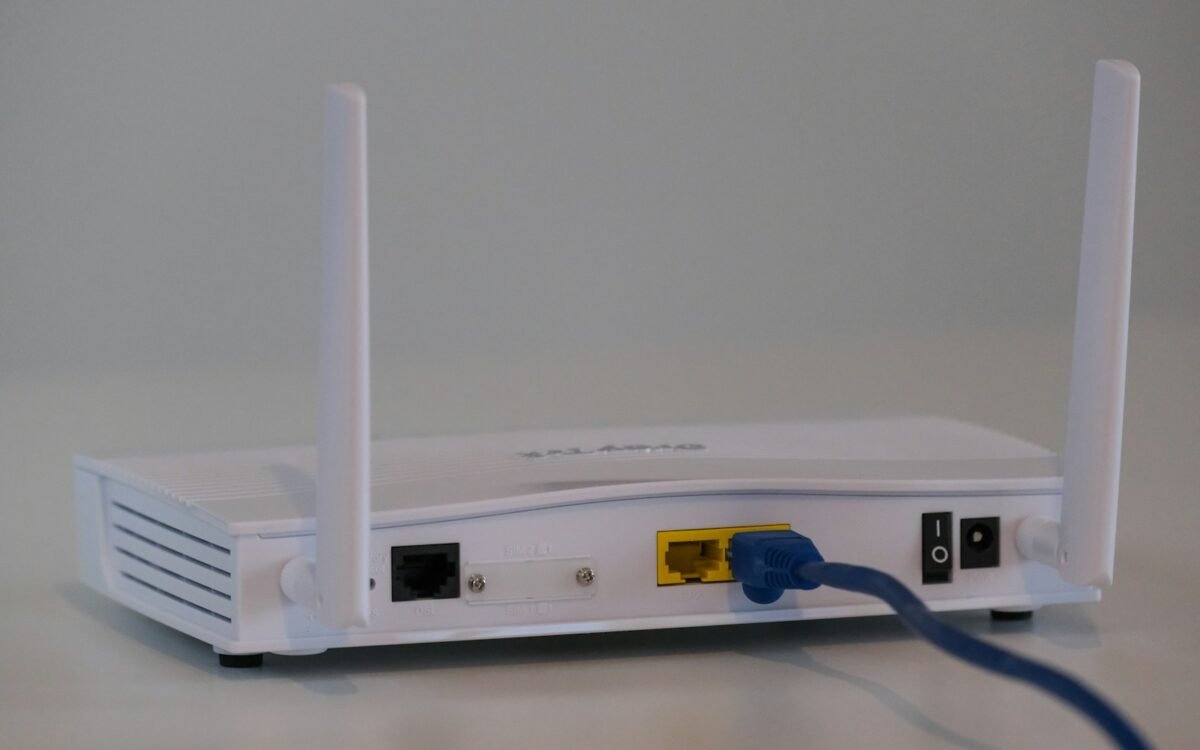
Find the point where the service enters your home. It may connect to a modem, an optical network terminal, or a combined modem-router. Photograph the labels and cables, then note which box provides Wi-Fi and which one provides the wired connection. If you have more than one router, identify whether the extras are mesh nodes, access points, or separate routers. Two routers both trying to manage the same home network can create slowdowns, confusing addresses, and unreliable gaming or video calls.
Make a short device list with three columns: device, connection type, and importance. Mark devices that handle sensitive information, such as a work laptop, medical monitor, security camera, or home server. Also note old devices that may not receive updates. You can then decide which equipment belongs on the main network, a guest network, or a separate smart-device network if your router supports one.
Test the current setup before changing it. From a wired computer if possible, record the download and upload speeds at three times of day and note where the signal is weak. Run the same test near the router and in the room where performance matters. This distinguishes a slow internet service from a weak wireless signal, a busy channel, or a device problem.
Secure the router and wireless access
Change the router’s administrator username or password if the interface allows it. Use a long, unique password that you do not reuse for email or any other account. Save it in a reputable password manager or another secure place. Next, choose WPA3-Personal when all important devices support it. If older equipment requires compatibility mode, use the strongest mixed mode available rather than leaving encryption disabled. Turn off WEP and open, password-free Wi-Fi.
Give the network a neutral name that does not reveal your address, surname, apartment number, or the router model. Set a separate, long Wi-Fi password and avoid using a phrase that visitors can guess. Do not hide the network name as a security strategy; hidden networks are not a substitute for encryption and can make normal connections less reliable.
Disable remote administration from the internet unless you have a specific, well-understood reason to use it. Turn off unused features such as WPS push-button setup, universal plug and play, or port forwarding rules you did not create. Some devices need local discovery, so do not disable every convenience feature blindly. Change one setting at a time and check whether the devices that matter still work.
A fast network is useful; a fast network that exposes every device to avoidable risk is not a good setup.
Place equipment for dependable performance
Put the main router in an open, central position, raised from the floor and away from thick walls, metal cabinets, aquariums, cordless-phone bases, and large appliances. Do not hide it inside a cupboard just to improve the room’s appearance. If the incoming cable enters at an awkward location, a wired access point or mesh node may solve the coverage problem better than increasing transmit power.
Use Ethernet for stationary, high-bandwidth devices when practical. A television, desktop, game console, or work dock can leave more wireless capacity for mobile devices when it is wired. For wireless devices, connect newer equipment to the 5 GHz or 6 GHz band when range allows, while reserving 2.4 GHz for longer range and older or low-bandwidth equipment. A newer band is not automatically faster through several walls; test the actual room.
If you use mesh equipment, place each node where it still receives a strong signal from the previous node, not in the dead zone it is meant to fix. Wired backhaul is usually more stable than wireless backhaul. Keep the same network name and password across coordinated nodes, but avoid combining unrelated routers under identical names unless you understand how clients will roam.
Keep software, access, and traffic under control
Enable automatic router firmware updates if the manufacturer supports them, or schedule a quarterly manual check. Read the release notes when available, and keep a note of the router model and support date. Replace equipment that no longer receives security updates, especially if it sits at the boundary between your home and the internet. Apply operating system and app updates to phones, computers, cameras, and smart-home products as well.
Create a guest network for visitors and devices that do not need to reach your computers. Give guests the password without exposing your main network. For smart devices, use an isolated network if your router provides one, then confirm that the devices still work with the phone or hub that controls them. Isolation can prevent convenient discovery, so follow the manufacturer’s documentation rather than assuming every feature will survive it.
Review connected-device and security logs occasionally. Remove devices you no longer own, change the Wi-Fi password after a roommate or contractor no longer needs access, and delete port-forwarding rules you do not recognise. Keep a small record of deliberate exceptions so a later troubleshooting session does not mistake them for unknown risks. Never open a router port just because an app says it is convenient; verify the need and secure the destination device first.
Measure problems before buying upgrades
When performance drops, test in a simple order. Check whether the issue affects one device or all devices. Run a wired speed test, then a wireless test beside the router, then one in the affected room. Restart the modem and router only after noting the symptoms, because a restart can temporarily hide an overheating or capacity problem. Check for a failed cable, a full storage drive on a backup device, or a large upload consuming the connection.
If the service is slow at every location, contact the provider with time-stamped results. If the wired test is good but distant rooms are poor, improve placement or add a correctly positioned access point. If only one device struggles, update its drivers or software and check its power-saving settings. Replace hardware when the evidence points to it, not because a product advertisement promises a dramatic number.
Once a month, review the device list, update status, guest access, and router alerts. Keep a written backup of important configuration details, but never store passwords in an exposed note. This small routine preserves the work you did and makes the next problem easier to solve.
A dependable home network is built through clear ownership and small checks: know what is connected, secure the controls, place equipment deliberately, and measure before spending.
Key takeaways
- Inventory devices and test wired versus wireless performance before changing settings or buying equipment.
- Use strong unique credentials, current encryption, updates, disabled remote access, and separate guest or smart-device access where appropriate.
- Improve placement and use wired connections for demanding devices, then troubleshoot from evidence rather than advertised speed claims.